
Built for the moment it matters
Everything a control room needs to see a fire, act on it, tell the right people and prove what happened, on panels of any make.
From the world map to the detector, in three clicks
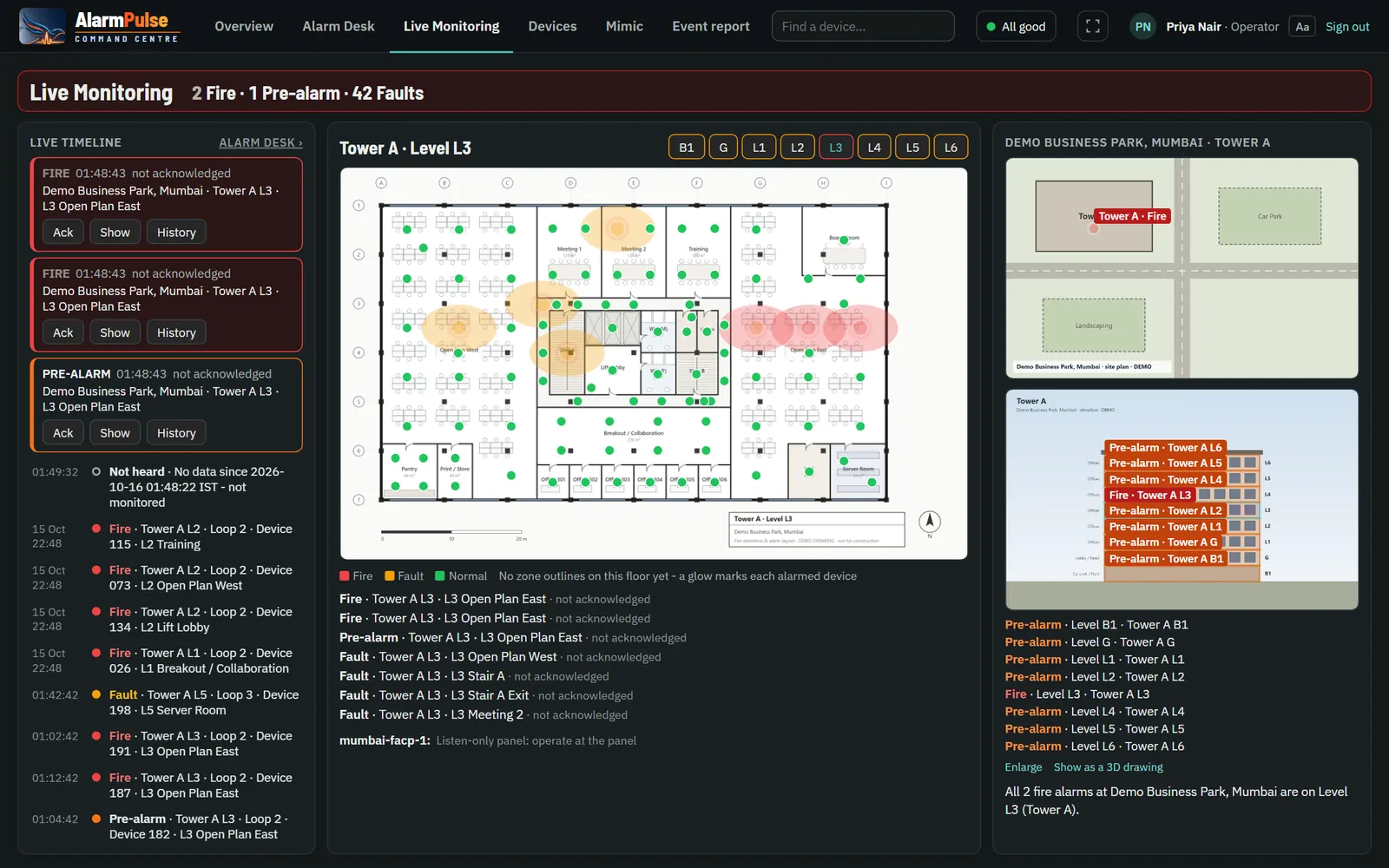
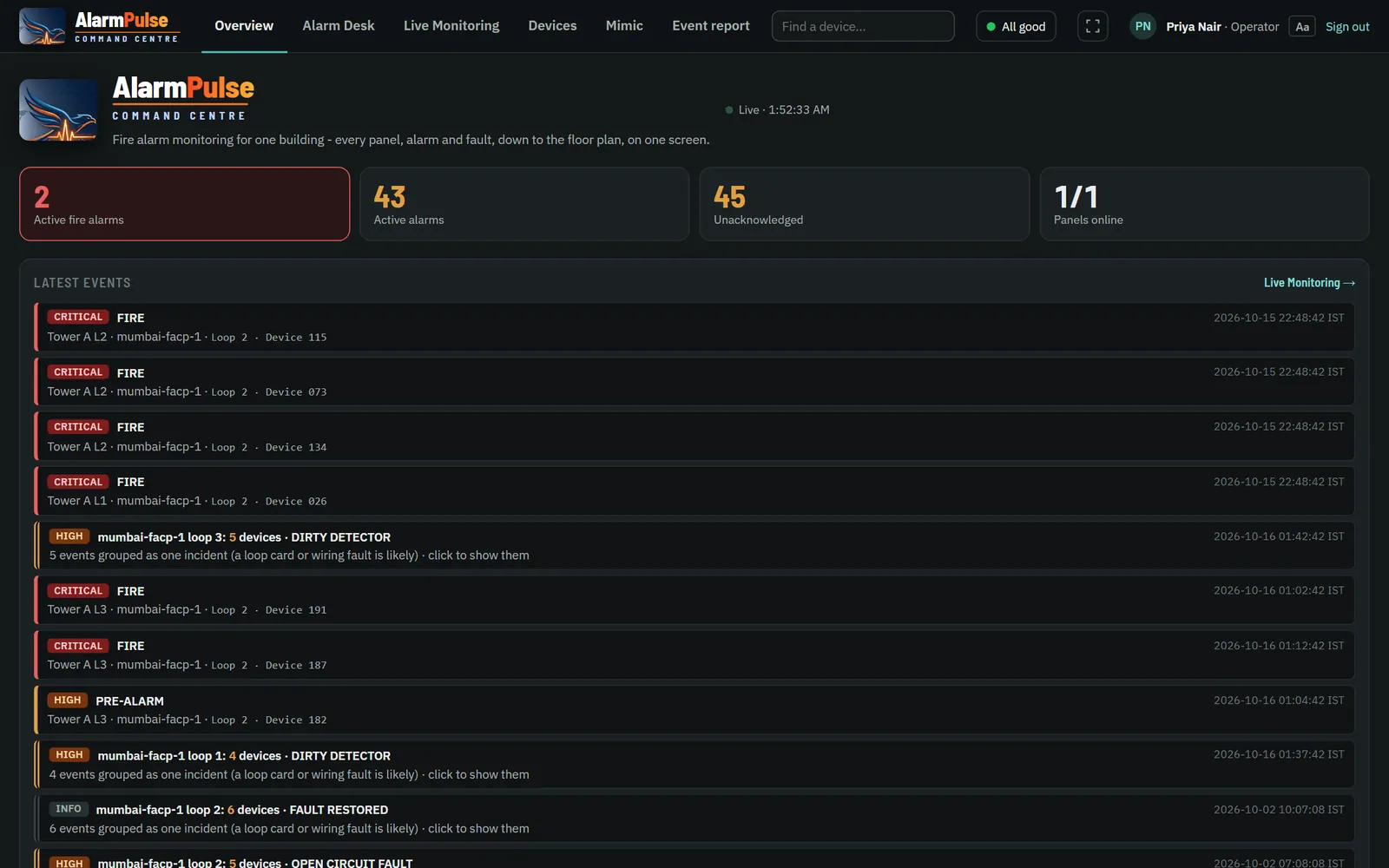
Live Monitoring follows the newest unacknowledged fire automatically. The map shows every site, the building appears with its floors marked, and the floor plan glows where each device is in alarm.
- All / Fire / Faults filter on the map; a hidden fire is always counted in red.
- Floor buttons coloured by state; a click opens that floor.
- Zones and exits drawn on the plan; an exit whose route passes a zone in alarm is greyed out.
- Cameras covering the zone in alarm pop up, only when they are streaming.
- Plain sentences: "All 2 fire alarms at Demo Business Park are on Level L3 (Tower A)."
- Full screen for video walls; maps keep working through an internet outage.
Counts you can trust
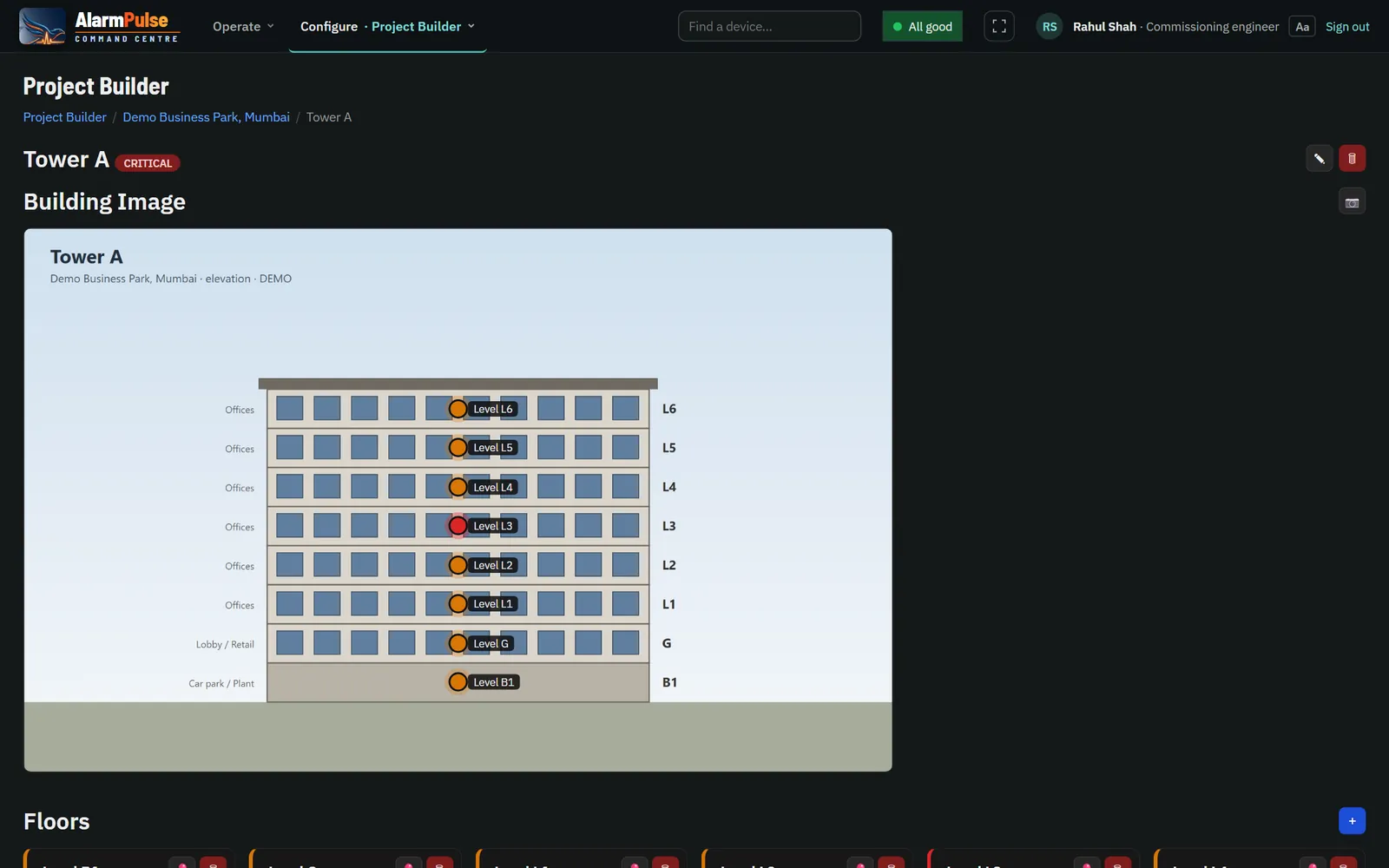
"2 Fire · 3 Pre-alarm · 60 Faults", always said "from 9 of 11 panels heard" when one is silent. The building view marks each floor on the building's own drawing or photo, with the worst state per floor.

An Alarm Desk built for handling
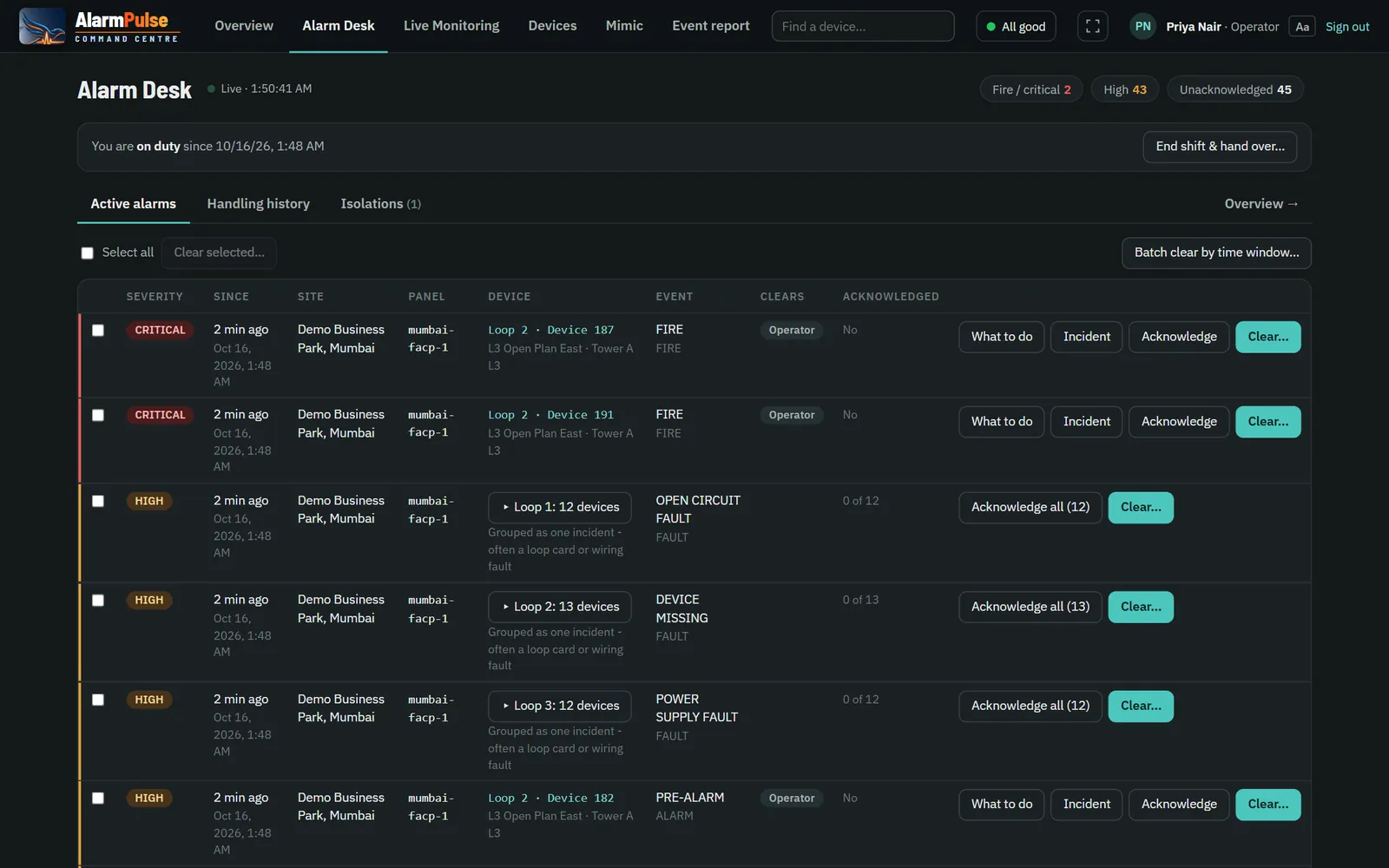
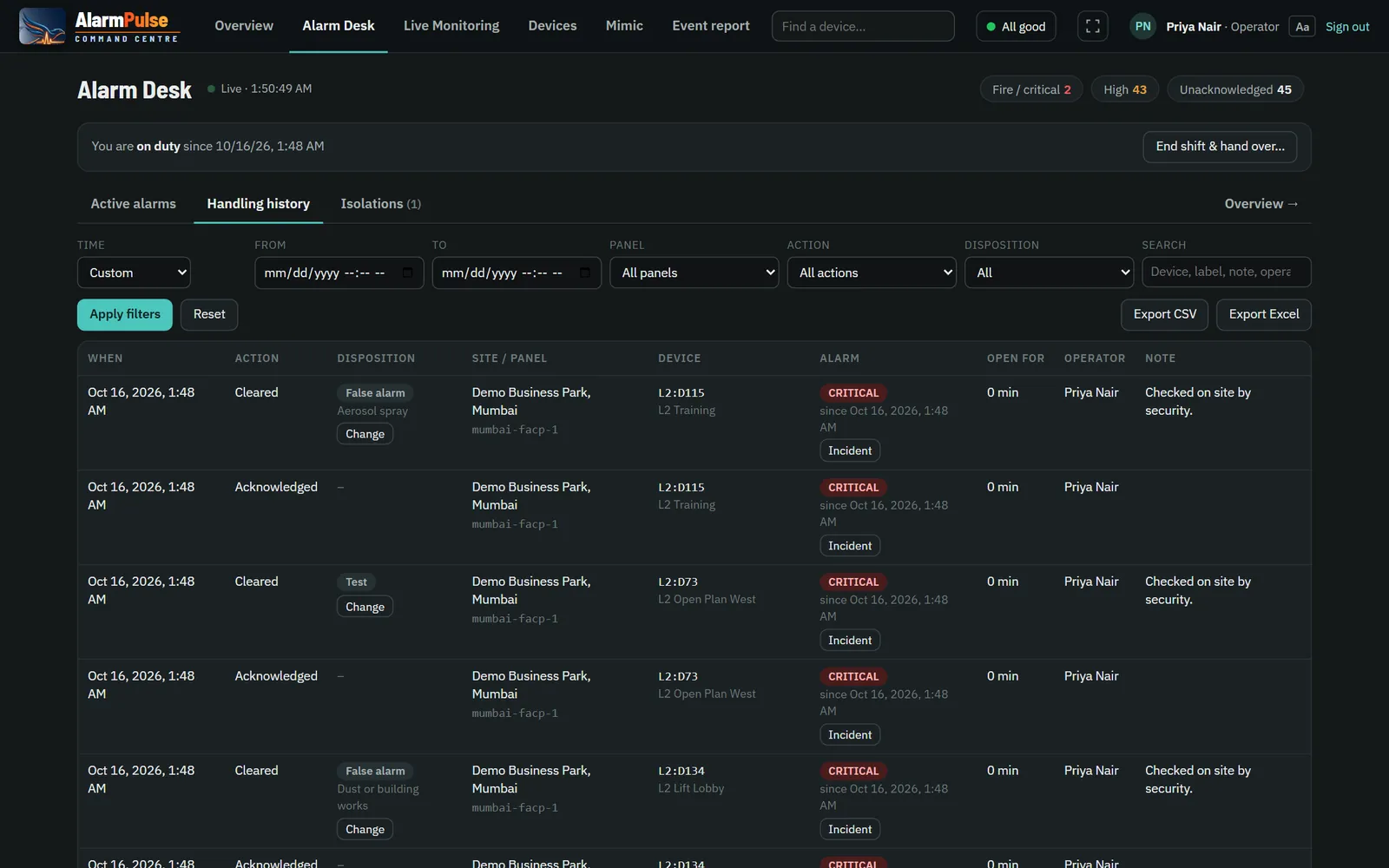
Every active alarm, fire first, with who acknowledged it and when. Operators act from one row: what to do, the incident's story, acknowledge, clear.
- Acknowledge and clear with the outcome: real fire, false alarm, test, fault, other.
- False-alarm causes (cooking steam, dust, aerosol, hot works…) feed the false-alarm report.
- Batch clear by time window after a known event, every row audited.
- Loop failures become one incident with one notification, not 150 alarms.
- Incident timeline with notes from every operator.
- Isolations with reason, work type, permit and return date; a reminder when one overstays.
"What to do" for every alarm
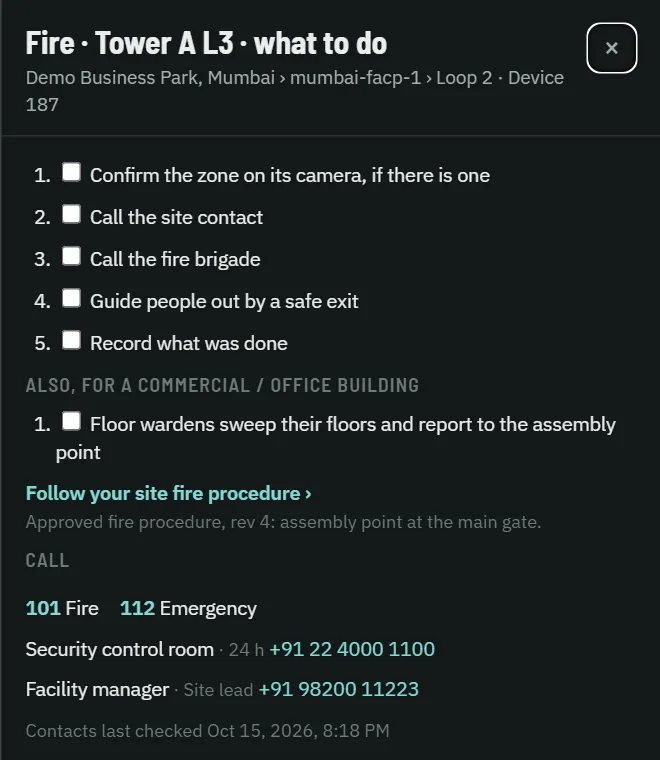
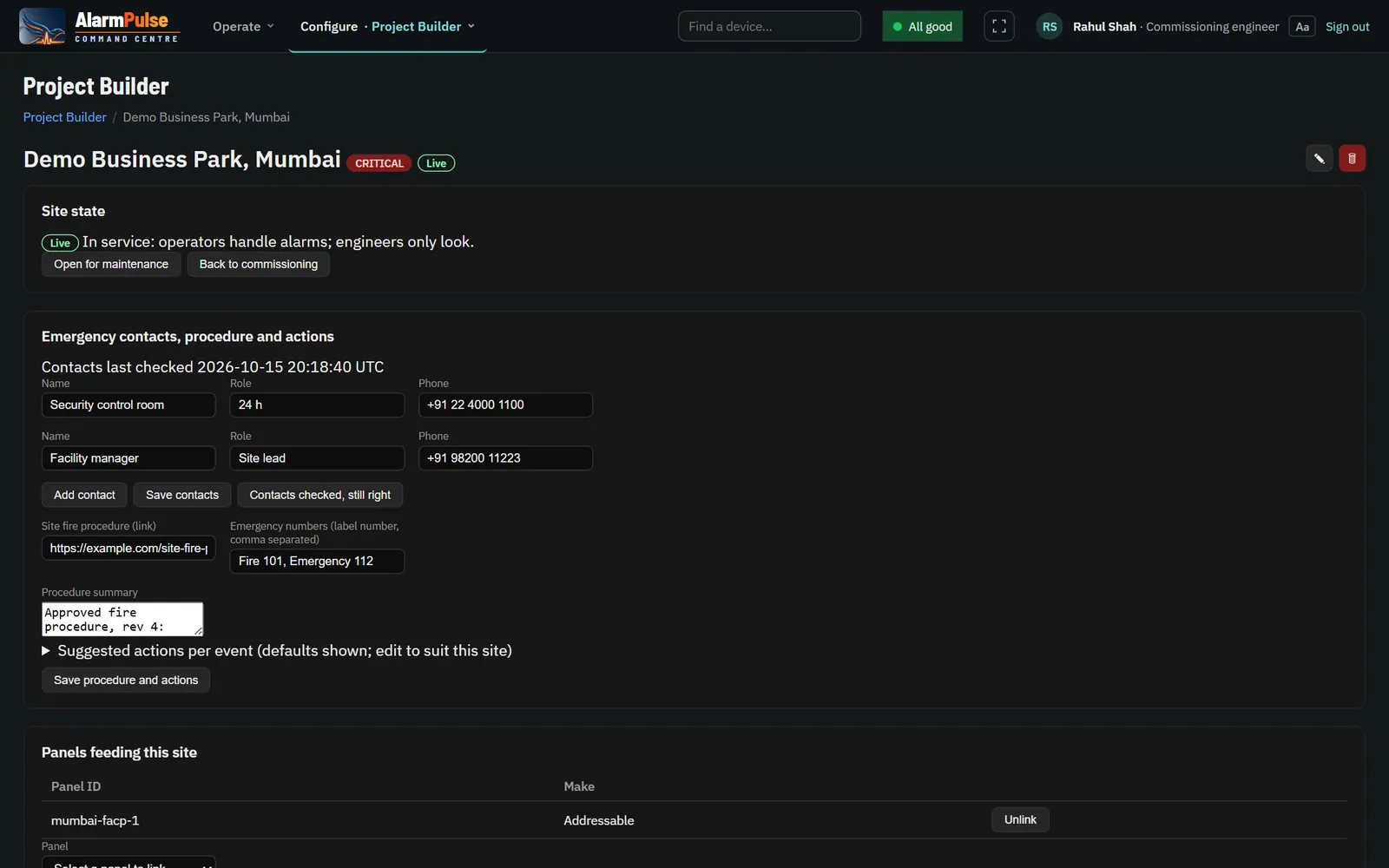
The site's own steps, then the building type's, the site procedure, emergency numbers and contacts. Each ticked step is recorded. Type steps are added for you: horizontal evacuation in a hospital, refuge floors in a residential tower.
The worst failure is the one nobody sees
A panel whose link is down looks exactly like a quiet panel, unless the software says so. AlarmPulse names every panel it cannot hear, on every screen, and never says "all clear" while one is missing.
- Every outage is an event: when a link drops and when it comes back, with the gap in between.
- Found on resync: events that arrive after a reconnect are tagged, never passed off as live.
- Server outages too: if AlarmPulse itself was down, that period is recorded for every panel.
- Store and forward: site agents keep events on disk through an outage and resend them in order, each stored once.
- Connection check in the header: your device, the server and the fire system, with the last update time.
If nobody acknowledges, someone is told
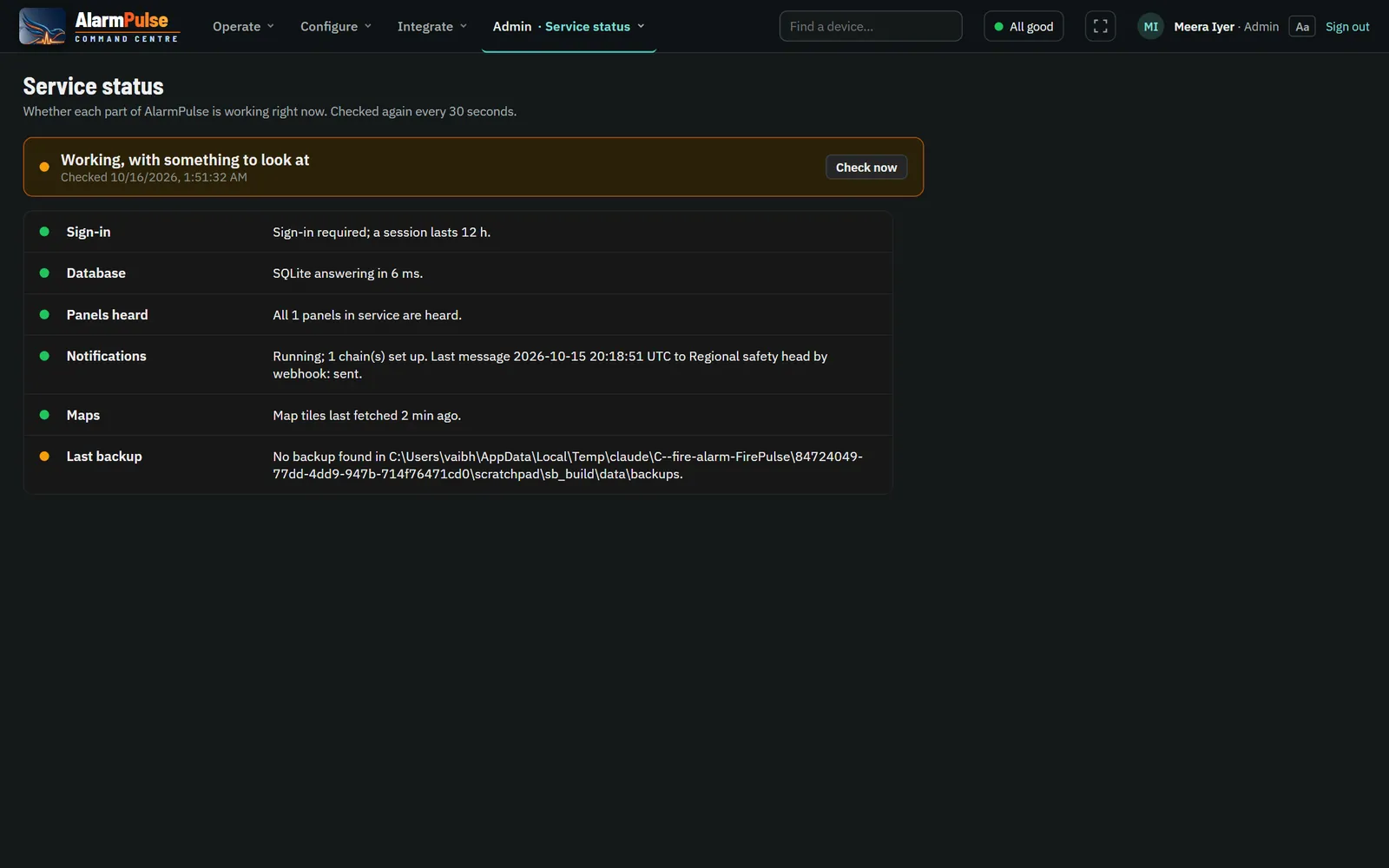
Escalation chains send an unacknowledged alarm to people in turn, each after their wait time, until someone acknowledges or clears it on the Alarm Desk. When the alarm clears, everyone who was told hears that too.
- Channels: email, Telegram, and webhook for any SMS or voice provider.
- Chains per site and severity: a site's own chain, or one for every site.
- Stops the moment an alarm is acknowledged or cleared.
- "All clear" / "Panel reset" sent once to everyone who was messaged.
- Test mode for drills, so a drill notifies nobody.
- Restart-safe, and every attempt recorded, sent or failed, with the reason.
Every device, every event, every report
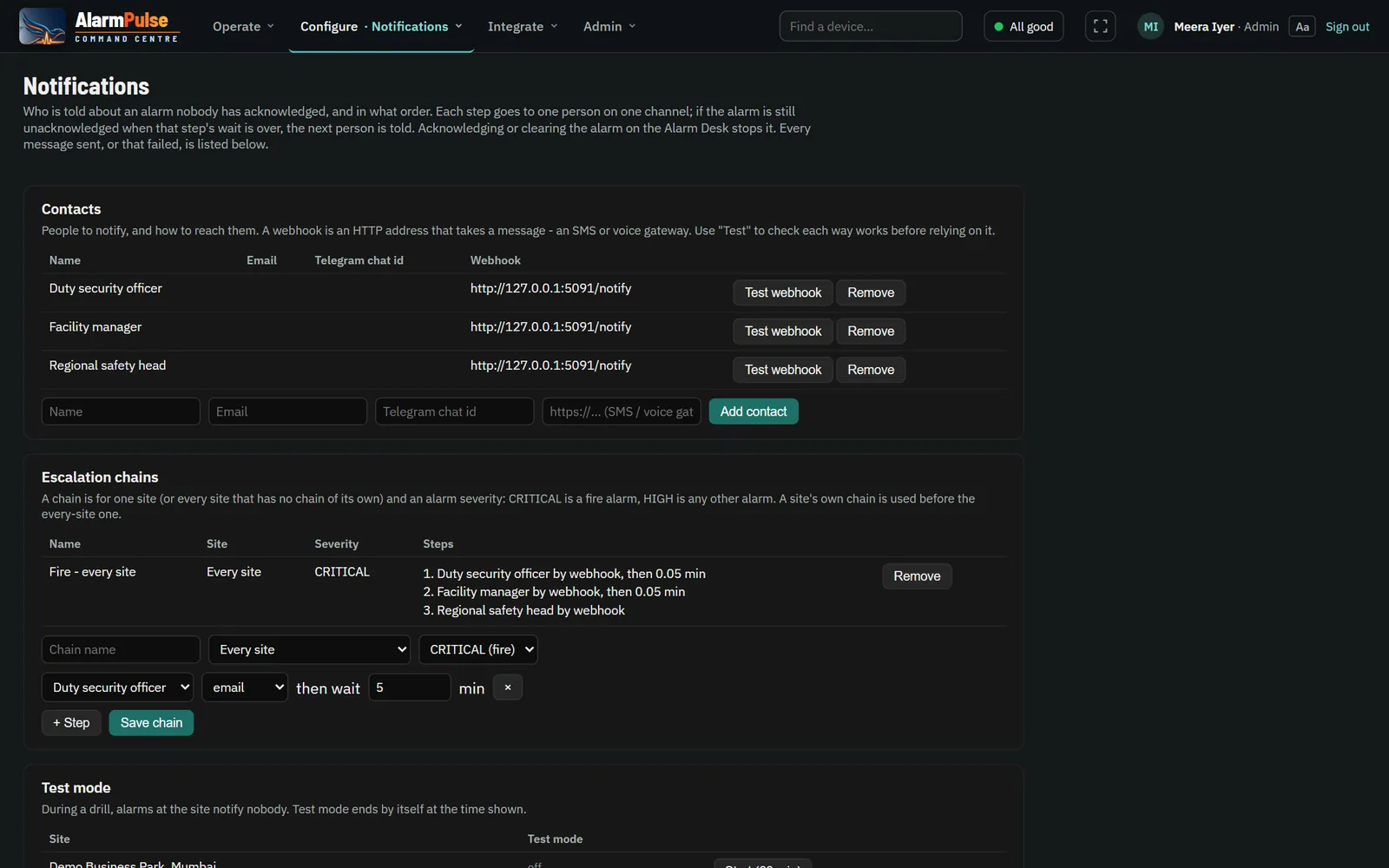
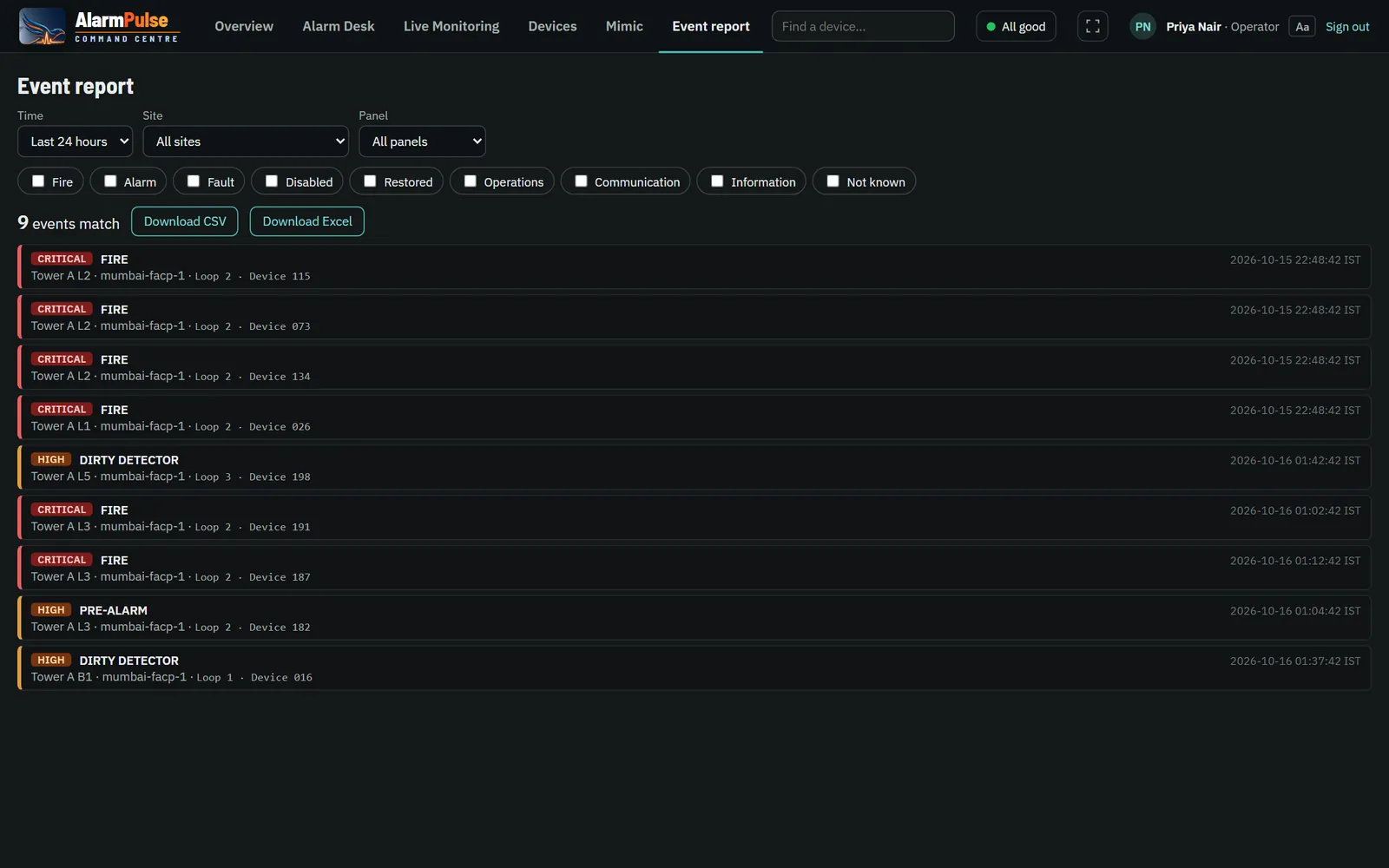
Find any device in seconds, see why it is in fault and what it did last month, and hand management the report they ask for.
- Loop and device shown plainly: "Loop 1 · Device 023".
- Device search from any page, by name, zone or address.
- A "not placed on a map" list, so no device is left off a floor plan.
- Event report by time, site, panel and type; download CSV or Excel.
- False-alarm report by cause, site and device.
- Event rules re-class a panel's own text, never lowering a fire.
Set up a site in an afternoon
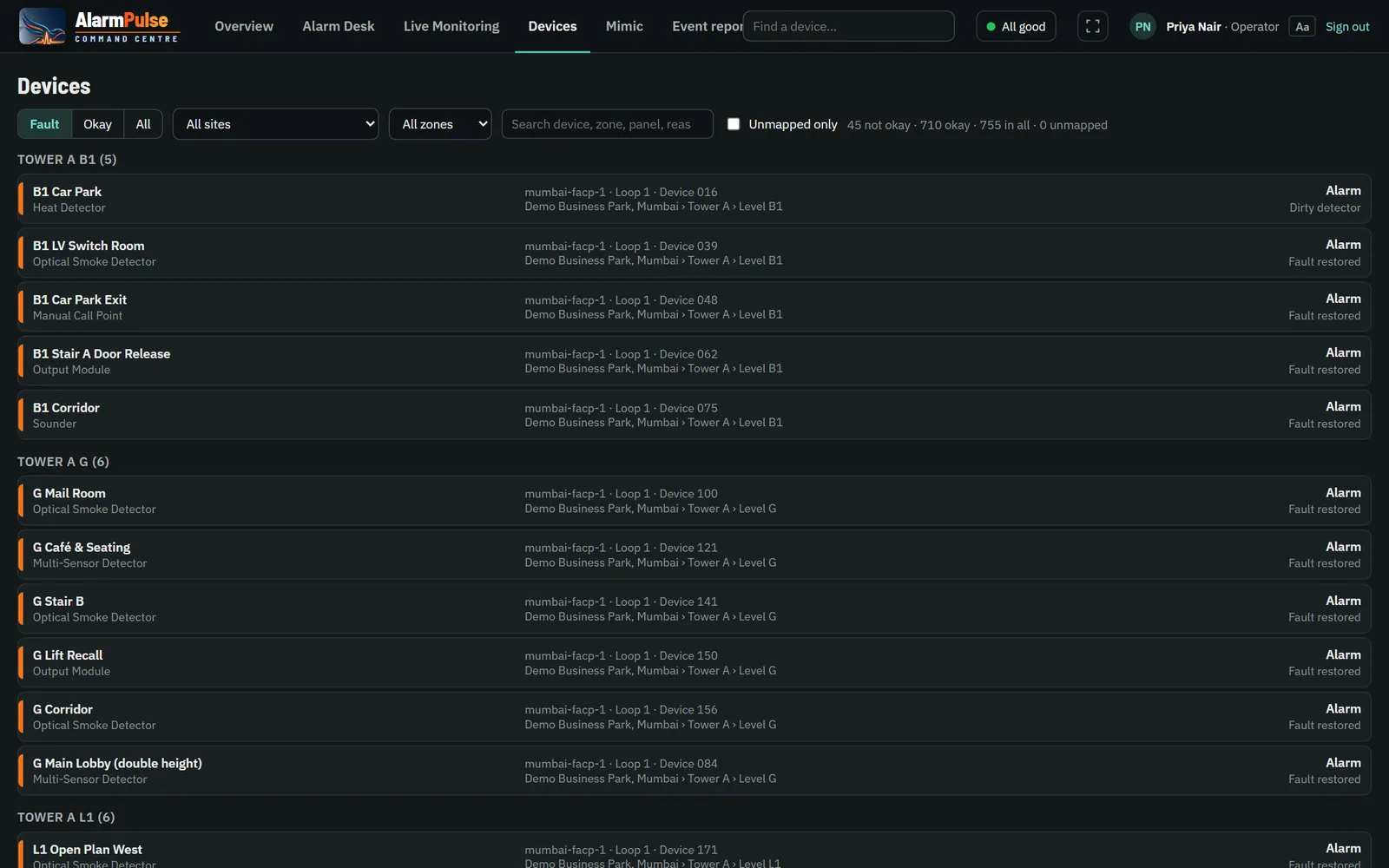
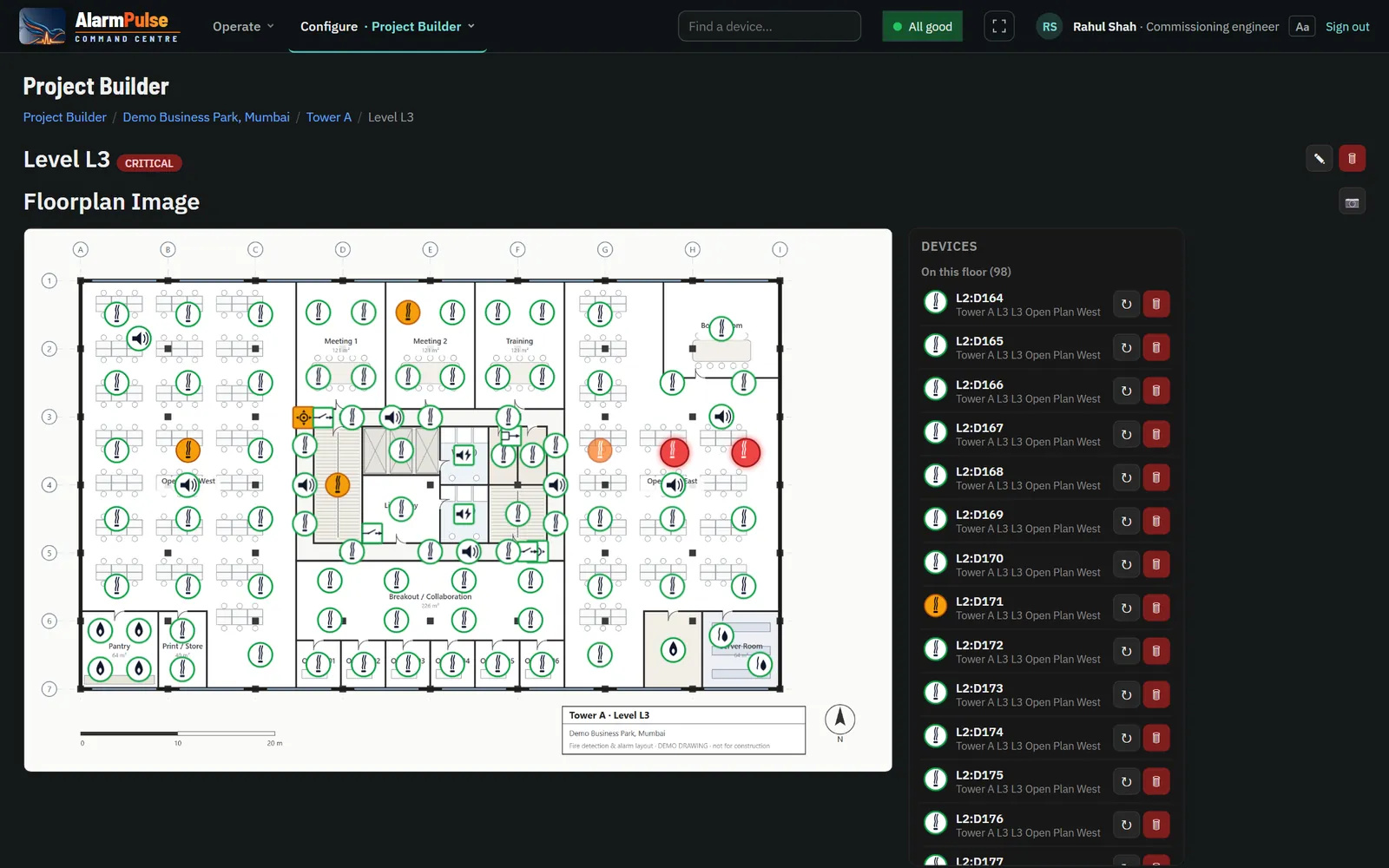
Commissioning engineers build each site in the browser: buildings, floors, floor plans and devices, emergency contacts and the site's own fire procedure. A site moves from Commissioning to Live only when it is ready.
- Building types: commercial, hospital, industrial, pharma, residential, mall / cinema, hotel; the usual floors are added for you.
- Device lists imported from a spreadsheet.
- Zones and exits drawn on each floor, from the approved plan.
- Changes to Live sites kept as drafts, approved and published.
- Site requests: a customer submits a new site with its drawings for review.
- Maintenance mode for planned works, returning to Live by itself.
Shifts, sound and screens that suit the room
- Shifts: who is on duty, and a handover note for the next shift.
- Alarm sound and alerts on every page, so a new fire is never missed.
- Installs as an app on control-room PCs and tablets.
- Light or dark theme, larger text, high contrast, compact layout and full screen for video walls.
- Any current Chrome, Edge, Firefox or Safari; nothing to install.
See it on your own panels
A live demonstration with your site's floor plans and panels.